Why Edit the Hosts File?
Editing the hosts file is useful when your local DNS fails to update as it should. Here’s a step-by-step guide for different operating systems.
What is a Hosts File?
The hosts file is a local text file that maps domain names to IP addresses. It’s checked by your computer before querying the DNS.
Editing the Hosts File on Windows 10
1. Manually:
– Open Notepad as an administrator.
– Navigate to `C:\Windows\System32\Drivers\etc`.
– Open the hosts file, make your changes, and save.
2. Using a Hosts File Editor:
– Install a Hosts File Editor tool.
– Input the desired IP addresses and domain names, then save.
Editing the Hosts File on Linux
1. Open Terminal.
2. Switch to superuser with `sudo su`.
3. Use a text editor like Gedit: `sudo gedit /etc/hosts`.
4. Add the IP address and domain name, then save.
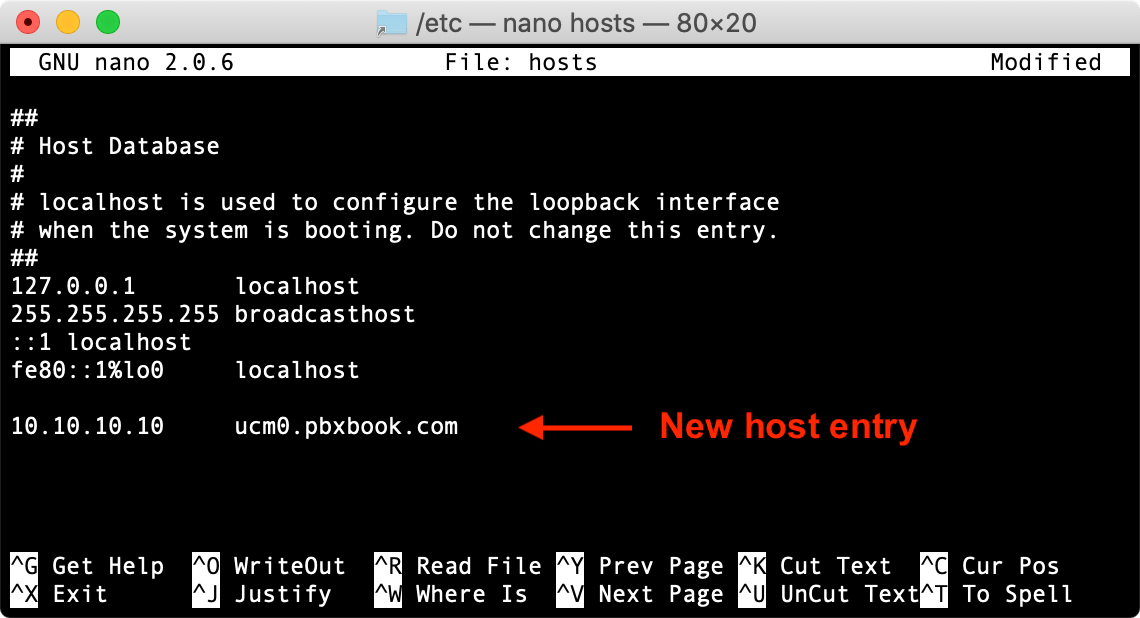
Editing the Hosts File on macOS
1. Open Terminal.
2. Use Nano Editor: `sudo nano /private/etc/hosts`.
3. Enter your password.
4. Add the IP address and domain name, then save with `Ctrl + O`.
Conclusion
Editing the hosts file requires administrative rights and impacts only the local machine, making it a powerful tool for local testing.